
Quick Start Guide
Contents: What is Vizloom? · Step 1: Visuals Library · Step 2: Import Songs · Step 3: Synchronize · Step 4: Create Video · Step 5: Render · What's Next?
What is Vizloom?
Vizloom is a procedural video editor built for DJs, producers, and artists. It helps you automate the link between music and visuals, so you can turn even very long shows into immersive, synesthetic journeys.
In just a few minutes per track, you can turn your music library into a library of music videos — ready to mix live in Rekordbox, Serato, Resolume, or other DJing/VJing software. Yes, there is other apps out there to slap visuals onto music... Vizloom is meant for leveling it up, making your audio-visual association feel intentional, carefully curated and ultimately high quality. Your videos will capture drops, breakdowns, and groove with precision. The result: a performance that brings sonic worlds and storytelling to light.
There are three types of source materials feeding this process:
- Art curation: you'll be building a personal collection of visual art over time;
- Music selection: if you are a DJ, you've been doing this already;
- Workflow Automation: slowly build out your own Vizloom "templates", which automate your visualization styles, and bring into one place the controls you need to rapidly customize each song.
Loading diagram...
Step 1: Set Up Your Visuals Library
Before creating videos, you'll need some visual assets. Vizloom comes with a starter kit of visuals to get you going (find the link in your welcome email).
- Open the Visuals dialog (it should open automatically on your first launch)
- Drag each folder of visual assets onto it. They will automatically get organized into folders.
Your visual library is the foundation of your Vizloom workflow. Curate it in the same way you curate your music: keep things coherent with your music genres and the vision you have for the vibe you want to create.

Step 2: Import Songs
- Close the visuals dialog by clicking the X button
- Drag your music tracks onto the window
The analysis extracts the tags, BPM, and audio stems from your tracks. It generally takes a couple minutes, but it should leave enough bandwidth for you to get working on whichever tracks are already analyzed. Since for this tutorial we only have this one, while we wait let's familiarize with Collections.
Detour: Collections
If you click on the Folder icon to the left of the song's metadata, you'll be prompted to create a new collection. Let's click, call it "Tutorial" and confirm. This song is now part of the "Tutorial" collection.

If you click on the 3 lines button at the top-left corner of the window, you'll access the list of available collections. Collections are a way to organize your songs, and customize your workflows for specific genres, gigs or visual styles. The sliders button in the top-right corner will open the settings for that collection (or the default settings, if you are visualizing "All" songs).
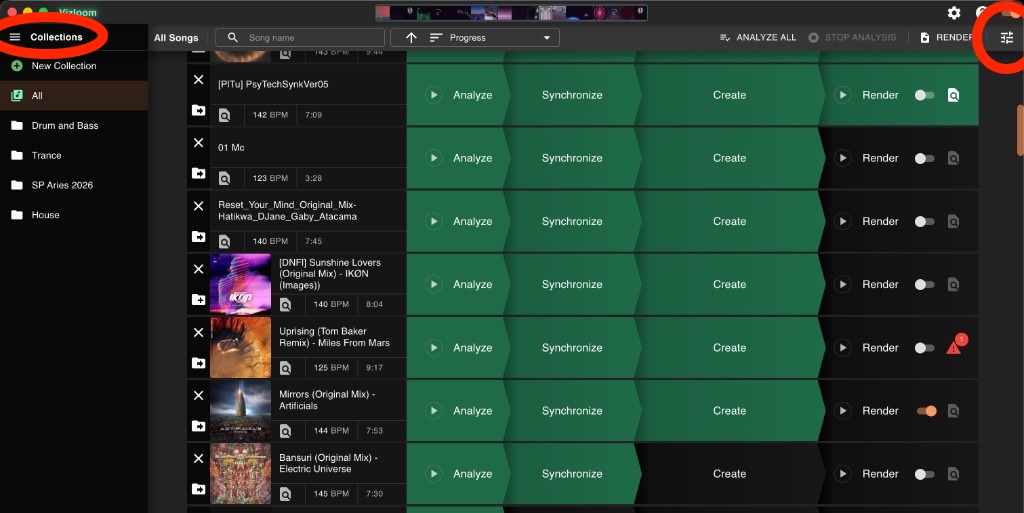
This screenshot is an example of what things look like once you start adding more songs and organizing them into collections. The collections and the settings buttons are highlighted in red.
Step 3: Synchronize the Beatgrid
Analysis should have completed by now. At this point we can click directly into the Synchronize tab.

Use the offset slider to align the beatgrid with your track. Here's how to get it right:
- Watch the visual clues — the beat bar should pulse in perfect sync with the kick, the clap with the clap etc...
- If it keeps going out of sync reset the offset, then try adjusting the BPM (the automatic analysis can sometimes be wrong).
- Click around the waveform — jump to different sections of the song to verify alignment
Most of the time the automatic detection is spot-on, but it's worth double-checking as it can be tricky to fix it later.

Note: HDMI adapters, bluetooth connections and the like tend to introduce lag, causing this syncing process to yield bad results. Use wired headphones / speakers or the speakers of your laptop directly if possible.
Step 4: Create Your Video
Click on the Create tab to start building your video.
Choosing a Template

Pick the "Layered Visuals" template. This template layers multiple visuals on top of each other according to various elements of the music. If you are curious, you can check out the Scenes Cut template too, and then get back to this one: you'll notice they are very different from each other and produce very different kinds of video.
Both Layered Visuals and Scene Cuts automatically generate a first draft of the song's structure (distinguishing breakdowns from "rhythmic sections") when applied. In this case, it's too eagerly marking short lulls in the bassline as breakdowns, which isn't ideal.

Let's dial down the "Sensitivity" of the Song Structure track to 0.1, which will get it to look almost perfectly right, except for a couple nuanced issues that are best left to humans:
- There is a long lull in the song at about 2:30, which we also want to mark as a breakdown;
- There is a small interruption in the rhythmic section around 6:30, which we don't want.

In the controls panel on the left, there is a "Adjust Keyframes" widget. Let's click the + cursor icon: this will make the Song Structure chart as well as the song's waveform become interactive, and highlight the keyframes as white horizontal lines. Those lines can be dragged around to properly align breakdowns and drops, new ones can be added by clicking on the charts, and they can be removed by holding ALT while clicking on them. Knowing all this, time to fix up the song's structure:
- Add keyframes at around 2:33 and 3:04 This will add a breakdown, and you will see all the animations below adapting to this change. Use the keyboard arrow buttons (and CTRL/CMD or SHIFT to change the size of the jumps) to hear what's happening in the song and verify your keyframes are in the right spots.
- Then let's keep "ALT" pressed, your mouse cursor will change to the "minus" variant. Click on the pair of keyframes appearing together toward the end to remove that breakdown.
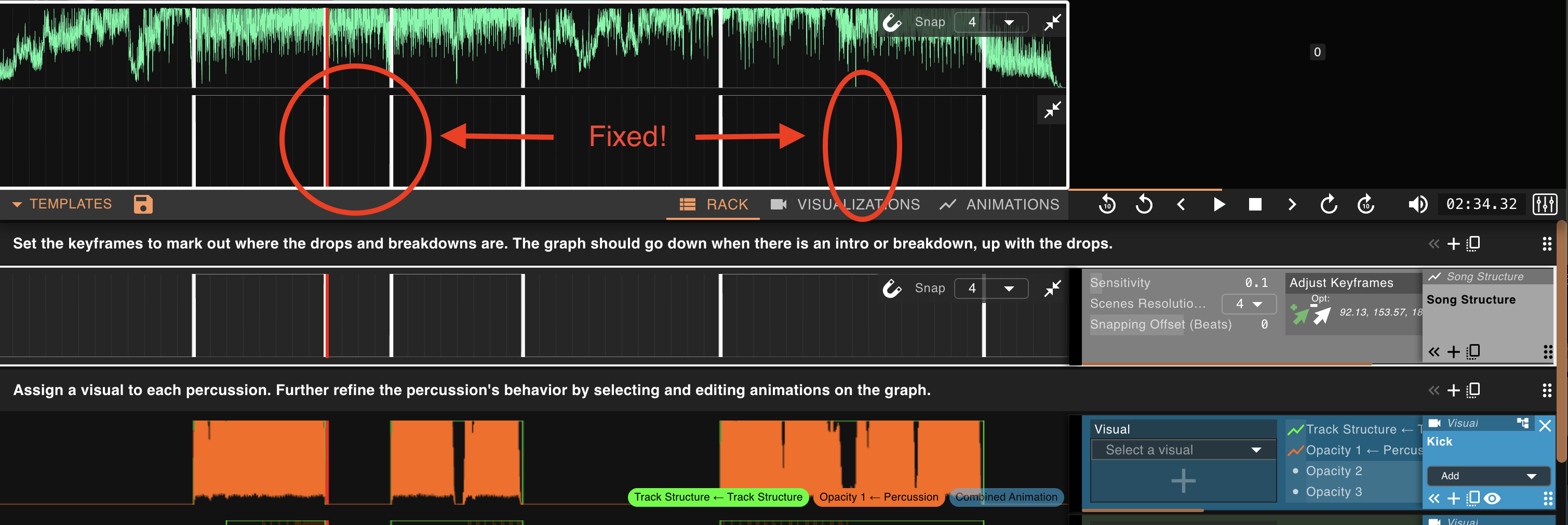
Once you are done, the keyframes shoul look like this. Press Enter or Esc to confirm your change.
Congratulations! The Song Structure is now looking the way we hear it, and all other tracks have adapted accordingly. For the perfectionists out there: you'll notice "Track Structure" animations already slotted into most other tracks: these inherit their initial shape from the work you have done here, but allow you to further refine things just in the same way.
Next, go through a few of the tracks below and assign visuals to their "Visual" slots. You can further customize their look using the sliders on each track (press "tab" to have them all controls expand for easier access). Play the video to preview it, have some fun with it. In the end, it should look something like this:

Templates

This “save” button allows you to save the current editor configuration as a template.
The objective is to develop one or just a few templates that express your specific editing style, then use them consistently to automate your visualization workflow.
Going Deeper
Through the button on the right of the playback controls, you can toggle open the de-mixer. If you click on the headphones buttons, or select any audio track by clicking on an empty space on it, you can quickly get an idea of the inputs going into this template.

The Visualization and Animations tabs contain the node trees that define templates and program every aspect of their behavior. You can modify any template down to its most minute detail, from timing curves to visual parameters.

Step 5: Render

When you're happy with your video:
- Toggle the Render checkbox to mark the song as ready
- Move on to your next track, prepare its video, and so on... Once you are familiar with the workflow, you should aim at spending no more than 15 minutes per track. It should be a level of effort that doesn't scare you off from engaging regularly, while producing results you are proud to display on a dancefloor.
- When ready, go back to the songs view (button to the left of your song's metadata) and click Render Queued to produce the full-resolution videos (currently, that means 1920 x 1080).

Pro tip: Prepare several songs, then click "Render All" before going to bed to let your laptop work overnight ;)
What's Next?
You've learned the basics! Here are some ways to level up:
- Join our Discord — There's a channel to crowdsource links to visuals, share your work, discuss ideas to improve Vizloom, etc.
- Follow our socials to stay updated on new features
- Share your work — Made a visual DJ set using Vizloom? Send it to info@vizloom.com to get featured!
Stay artsy! 🎵🎨